
How it works
The short version: window destruction is the trigger, and the click is the discriminator.
What it is
| Binary | Universal — native on Apple Silicon and Intel. Written in Swift, around 1 MB. |
|---|---|
| At rest | Event-driven via the Accessibility API — no polling, no timers, 0% CPU idle, a few megabytes of memory. |
| Signing | Signed with a Developer ID and notarised by Apple. |
| Network | Twice on its own, to check the licence; otherwise only when you ask. See below. |
| Settings |
A plain text file at
~/Library/Application Support/Exeunt/config.txt,
editable by hand.
|
| Log |
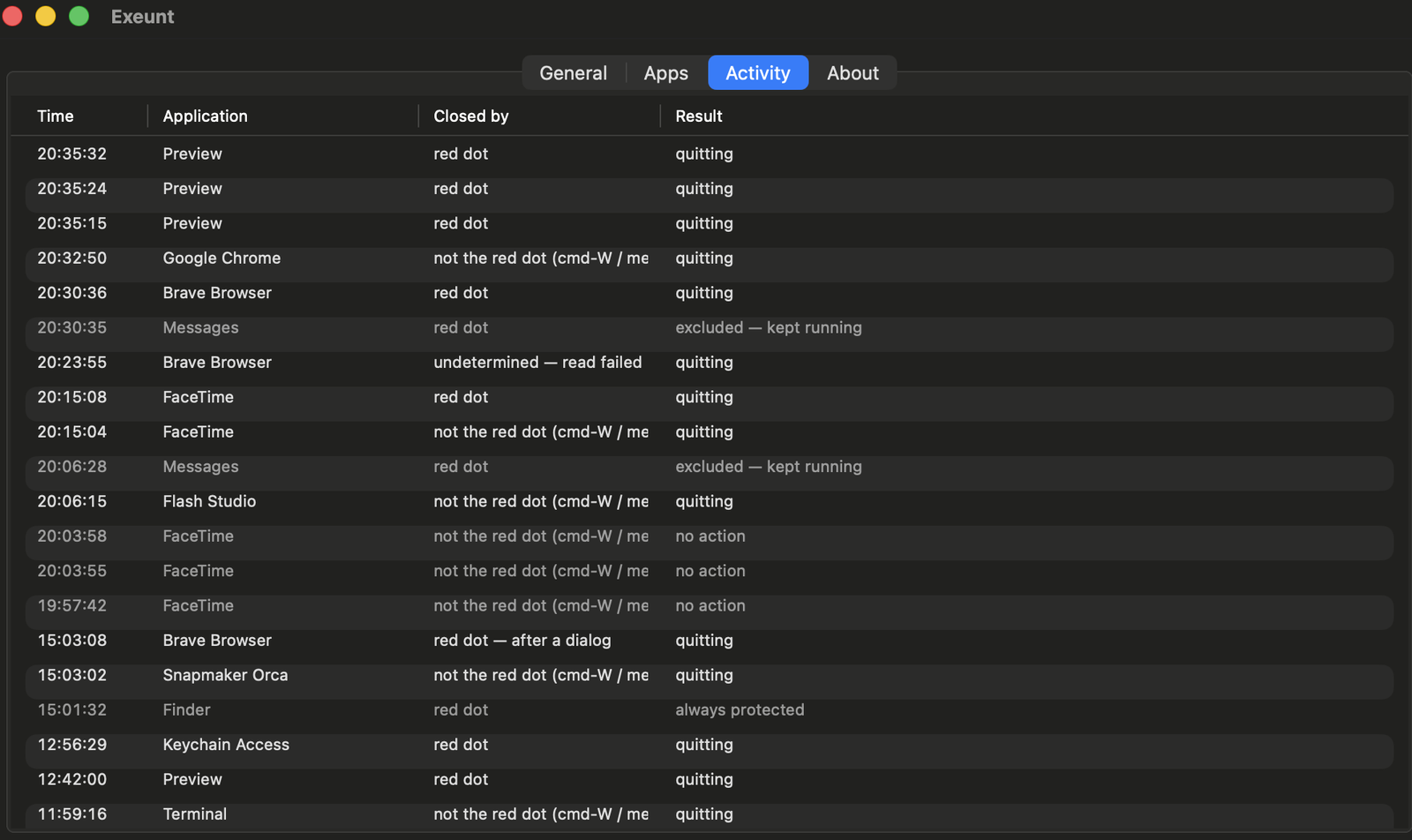
~/Library/Logs/Exeunt.log — every decision and its
reasoning, one line each.
|
Twice on its own, and otherwise only when you ask
Exeunt contacts exeunt.app twice in its life: once when you activate your licence on a Mac, and once more about a month later, when its first licence file runs out, to confirm the licence still stands. During the free trial it makes neither call. They send the licence key and an anonymous identifier for that Mac — a one-way hash, which can’t be turned back into anything about your hardware — plus, when activating, the Mac’s name, so you can tell which Mac is which if you ever ask us to move your licence.
What comes back is a licence file signed with a key only we hold, which the app checks on your Mac from then on. After the second call succeeds it never contacts anyone again of its own accord. No account, no analytics, no tracking, nothing on launch.
The only other times are ones you ask for. Check for Updates, in the menu, asks this site for the latest version number and sends nothing about you or your Mac — it never checks by itself. And deactivating the licence on this Mac, when you move to a new one, sends the licence key and the Mac’s identifier so the right Mac is released.
If it can’t reach us for that second check, it keeps working and tries again once a day for up to two weeks — the only time it retries anything. Only if it still can’t get through does it stop quitting apps, until it can check in. Nothing you have set up is lost.
That is also why Exeunt isn’t on the Mac App Store. App Store apps must be sandboxed, and a sandboxed app can’t use the Accessibility API at all.
Telling a red dot from Command-W
Both close a window. Only one of them should quit the app when the red-dot mode is selected, so Exeunt has to tell them apart after the fact.
- Each window’s close button is read through the Accessibility API and its frame cached, refreshed when the window moves or resizes. Failed reads are retried — apps are often too busy to answer on first ask.
- A global mouse-down monitor tests each click against those cached rectangles. That is pure arithmetic, with no interprocess call on the hot path. If nothing matches, it does one live read against the frontmost app only.
- When a window is destroyed, a close-button click on that window within 400 ms means the red dot was used. Otherwise it was ⌘W, a menu, or the app closing its own window.
Why this way round
Exeunt reacts to windows after they close, not to the click that started it. If you click the red dot and the app raises a “Save changes?” sheet that you then cancel, no window is ever destroyed and nothing fires. A design that acted on the click would already have quit the app.
It also means the app’s own save prompt has already run by the time Exeunt does anything. Exeunt is never what closes a window.
Destroy notifications are coalesced per app over 300 ms, because one user action can emit several.
How it quits
Nothing is force-quit, ever. Exeunt sends the same quit request ⌘Q sends. An app with unsaved work raises its own save dialog and survives.
Finder, the Dock, System Settings, Control Centre and Notification Centre are never quit, whatever the settings say.
Watching without acting
Turn the master switch off and Exeunt keeps watching and recording without quitting anything, so the Activity list shows what it would have done. That is the recommended way to spend the first day with it.