
Help
Exeunt works on any Mac with macOS 13 (Ventura) or later, Apple Silicon or Intel.
What it does
On a Mac, closing an app’s last window usually doesn’t quit the app. It stays running in the Dock, doing nothing and using memory. Exeunt fixes that: close the last window, and the app actually quits.
Installing
- Open the disk image (double-click it).
- Drag the Exeunt icon onto the Applications folder shown beside it.
- Open your Applications folder and double-click Exeunt.
- A small red dot appears in your menu bar, at the top right of the screen. That’s Exeunt. It has no Dock icon.
Giving it permission (one time)
Exeunt needs permission to see your windows, or it can’t do anything.
- On first launch it asks, and opens System Settings for you.
- Go to Privacy & Security, then Accessibility.
- Find Exeunt in the list and switch it on. If it isn’t listed, click the + button and choose Exeunt from Applications.
- That’s it. No need to restart the app — it starts working right away.
Turning it on
Exeunt arrives switched off, so nothing is quit until you say so.
Click the red dot in the menu bar and click “Exeunt is on” so it gets a tick.
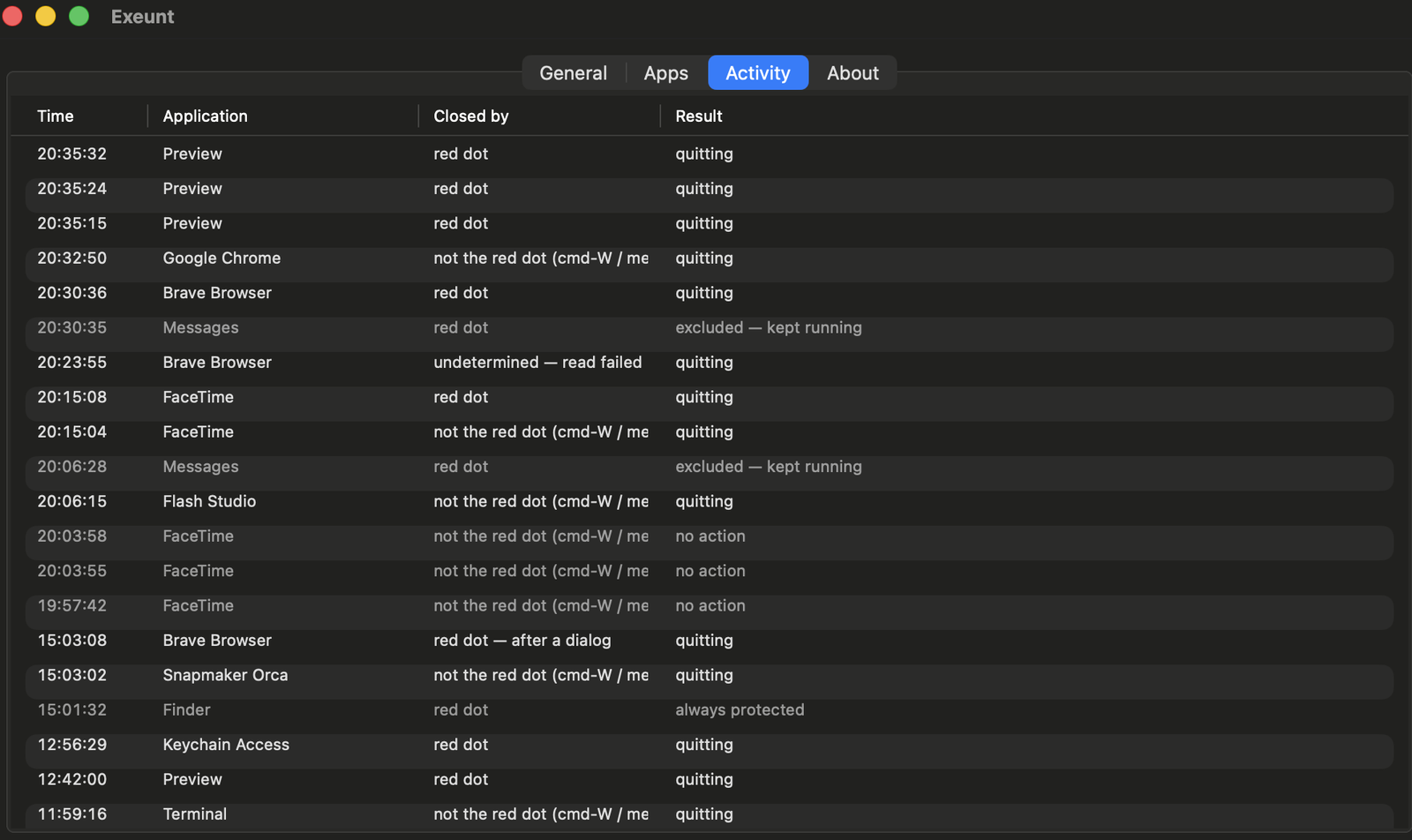
Leaving it off for the first day is a good way to try it. It still watches and records everything, so you can look at the Activity list and see what it would have quit, without anything actually closing.
The free trial
Exeunt is free to use for 14 days, with every feature working. No account, no card and no key.
- It starts the first time Exeunt runs — not when you download it.
- When it ends, Exeunt keeps running. It doesn’t nag and doesn’t lock you out. It behaves as if it were switched off: it still watches your windows and shows you what it would have quit, but quits nothing. The Licence tab and the menu bar say so plainly.
- Nothing is deleted. Your settings and your never-quit list stay exactly as you left them.
- Entering a licence key picks up where it left off, straight away.
The trial is per Mac. Want longer to decide? Email support@exeunt.app and ask.
Your licence
Your licence key is in the email that arrives after you buy. It looks
like EXNT-XXXX-XXXX-XXXX. To enter it,
click the red dot in the menu bar, choose Settings, then the Licence tab, and paste it in. That needs an internet
connection, once.
Lost the email? Have it sent again.
One licence, one Mac
A licence is for one Mac, unless it’s a team licence. Activating it again on the same Mac — after reinstalling, for instance — is fine, and needs nothing from us.
Moving to a new Mac
On the old Mac, deactivate the licence in the same place you entered it, then activate it on the new Mac. If the old Mac is gone — sold, broken, wiped — email support@exeunt.app and your licence will be moved for you.
If it can’t reach us
Exeunt checks with exeunt.app when you activate, and once more about a month later, when its first licence file runs out, to confirm the licence still stands. After that it never needs us again.
If it can’t reach us for that second check — you’re offline, or our server is down — it carries on working normally and tries again once a day for up to two weeks. Only if it still can’t get through after that does it stop quitting apps (it keeps watching, and says why) until it can check in. Nothing is deleted. What those checks send.
Deploying to several Macs
Team licences cover as many Macs as you buy them for.
Buy a licence for 5 Macs
($9.99), or
email
support@exeunt.app
for bulk pricing or any other number.
To roll one out without anyone pasting a key, install Exeunt and put
this line in each user’s
~/Library/Application Support/Exeunt/config.txt:
license = EXNT-XXXX-XXXX-XXXXExeunt activates it on first launch. It only tries while that Mac is unlicensed, and leaves the line in place if activation fails, so fixing the licence doesn’t mean redeploying.
Accessibility still has to be granted on every Mac. macOS doesn’t let an app grant it to itself, and we can’t approve it for you. On managed Macs, your MDM may be able to pre-approve it with a Privacy Preferences Policy Control (PPPC) profile — ask us for Exeunt’s bundle identifier and code requirement. Otherwise each person switches it on once, as described above.
Everyday use
That’s the setup done. The rest is reference — open whichever applies.
Using it day to day
Just close windows the way you normally do. When you close an app’s last window, the app quits.
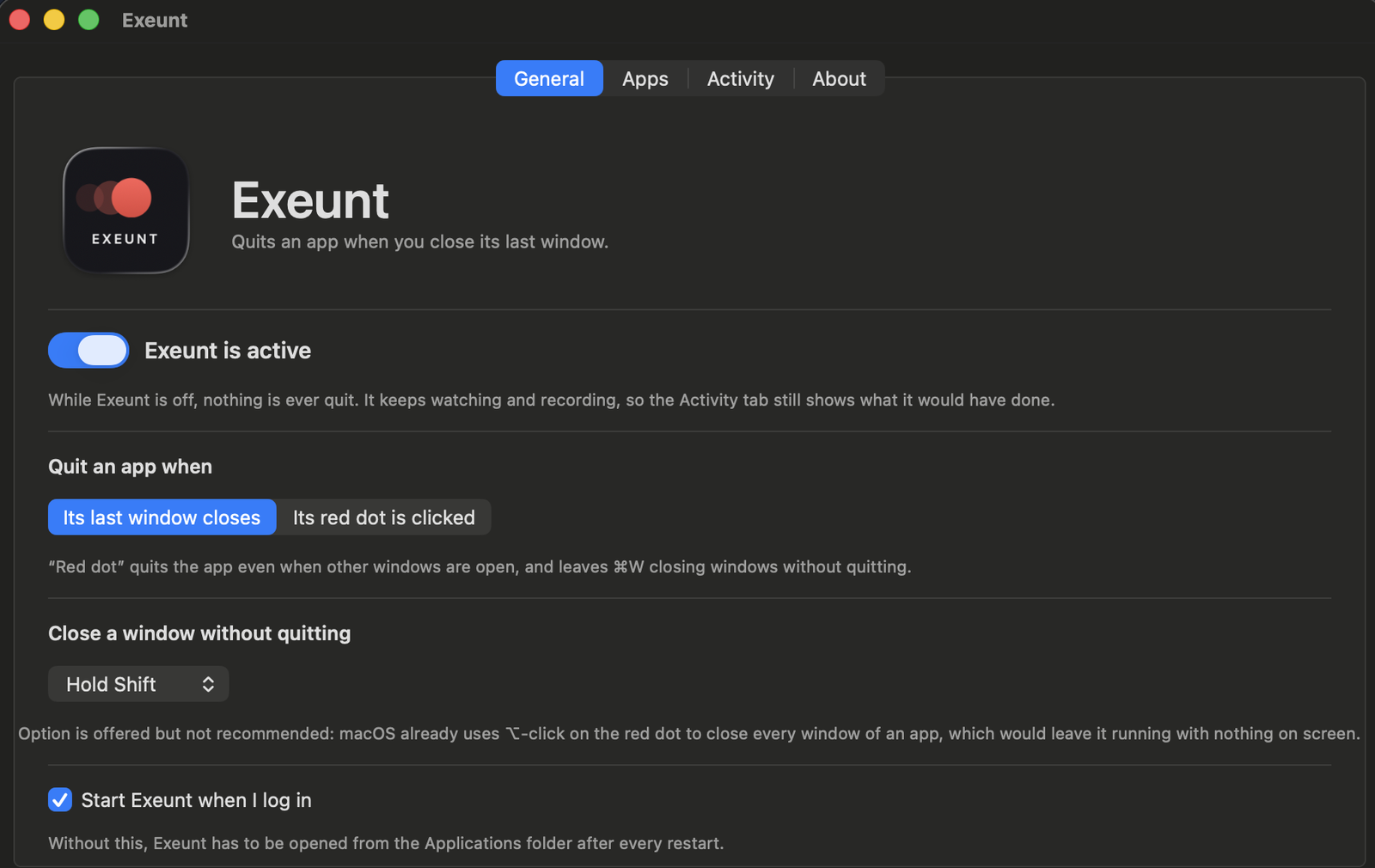
Hold Shift while clicking the red dot to close a window without quitting the app. That’s the escape hatch when you want to keep something running.
Some apps take a few seconds to quit after the window closes — Mail takes about ten. That’s the app being slow, not Exeunt being broken.
Protecting apps you don’t want quit
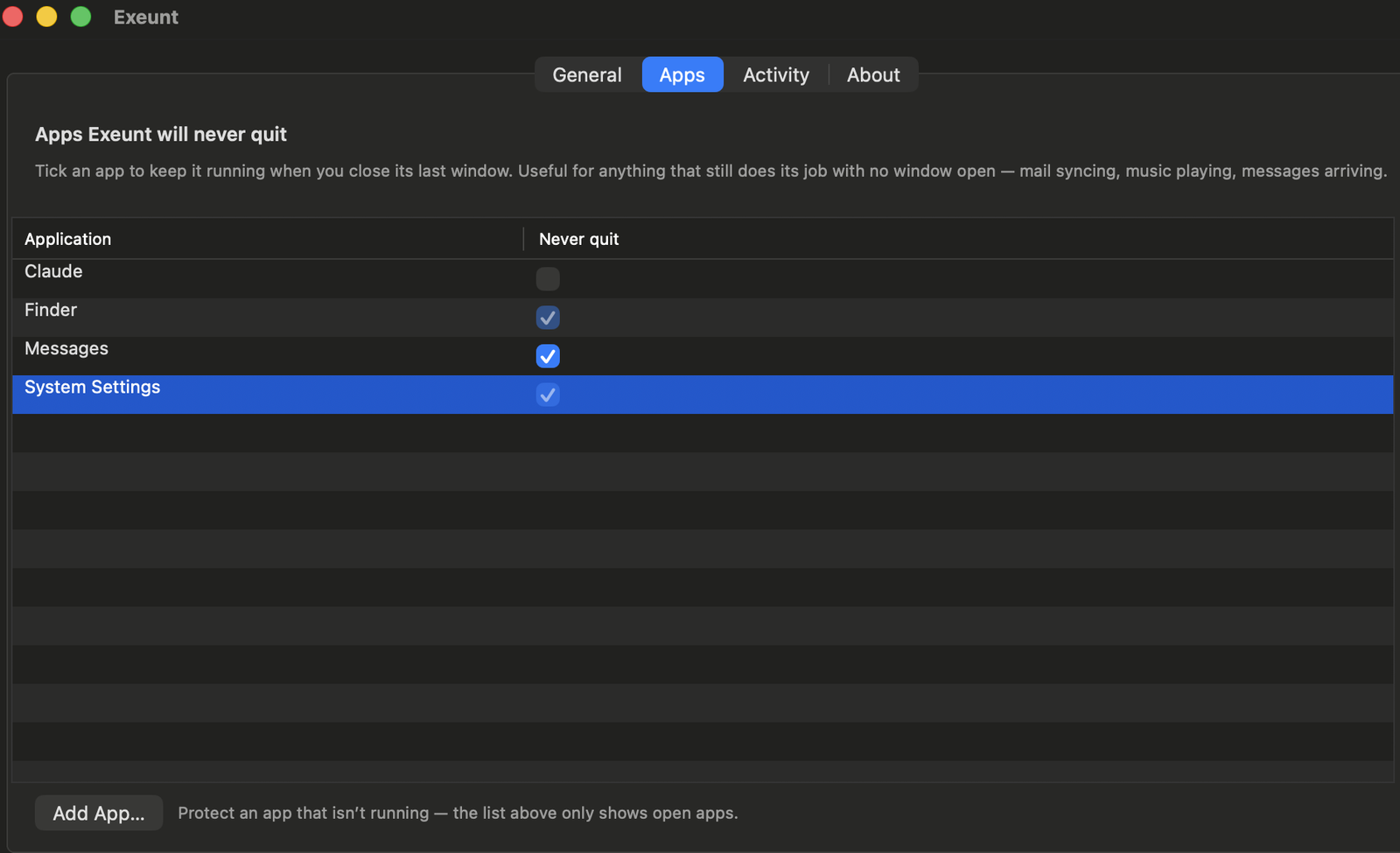
Some apps still do useful work with no window open: Mail collecting your email, Messages receiving texts, Spotify playing music. To protect one:
Easiest way
Click on the app so it’s the one you’re using, then click the red dot in the menu bar. Near the top it says “Never quit [name of app]”. Click that.

From Settings
Click the red dot, choose Settings, then the Apps tab. Tick the box beside any app. Use the “Add App…” button to protect an app that isn’t open.
Finder, System Settings and a few other system apps are always protected and can’t be quit by Exeunt.
The settings window
Click the red dot in the menu bar, then Settings.
| General | Turn it on or off. Choose when apps quit. Choose the shortcut for closing a window without quitting. |
|---|---|
| Apps | Every app, with a tick box for “never quit”. |
| Activity | Everything Exeunt has done, most recent first. |
| About | Version number and a “Copy Diagnostics” button. |
Two ways it can quit apps
When the last window closes (the normal setting)
Closing an app’s last window quits it, whether you clicked the red dot or pressed ⌘W.
When the red dot is clicked
Clicking a red dot quits the app even if other windows are still open. ⌘W just closes a window and leaves the app running.
Most people want the first one. You can switch in Settings, under General.
Starting automatically at login
Tick “Start Exeunt when I log in” and it will be there every time you turn the Mac on. You’ll find it in two places — whichever is handier:
- Click the red dot in the menu bar: “Start at login”
- Or in Settings, under General
macOS may ask you to approve it under System Settings → General → Login Items the first time.
Turning it off, and uninstalling
Click the red dot and click “Exeunt is on” to remove the tick. It stops quitting anything immediately.
To close Exeunt entirely, click the red dot and choose “Quit Exeunt”.
To remove it for good: quit it from the menu bar, drag it to the Trash, and remove it from System Settings → Privacy & Security → Accessibility.
Common questions
Is there a free trial?
Yes. 14 days, with everything working — no account, no card and no licence key. It starts the first time Exeunt runs.
What happens when the trial ends?
Exeunt keeps running and keeps showing you what it would have quit, but stops quitting apps. Your settings and never-quit list are kept, and entering a licence key picks up exactly where it left off.
Do I need an account to try it?
No. There is nothing to register, and the trial contacts nobody unless you choose Check for Updates.
Can I have longer to try it?
Email support@exeunt.app and ask.
Will I lose unsaved work?
No. Exeunt never closes a window — you do. Your app’s save dialog runs exactly as it always has, and only once the window is actually gone does Exeunt ask the app to quit. It uses the same polite request ⌘Q sends, never a force-quit.
What about apps that need to keep running?
Add them to the never-quit list. Mail, Messages and music apps are the usual ones. From the menu bar it’s one click on the app you’re looking at.
Can it quit Finder?
No. Finder, the Dock, System Settings, Control Centre and Notification Centre are permanently protected.
Why does it need Accessibility access?
It’s the only way macOS lets an app see other apps’ windows. Exeunt uses it to notice when a window closes and to know where the red dot is. It doesn’t read your screen, your keystrokes or your documents.
Why isn’t it on the Mac App Store?
App Store apps must be sandboxed, and a sandboxed app can’t use the Accessibility API. Every app of this kind is sold directly for the same reason.
Does it work on Intel Macs?
Yes. Exeunt is a universal binary and runs natively on both Apple Silicon and Intel Macs, on macOS 13 or later.
Some apps take a few seconds to quit.
That’s the app, not Exeunt. Mail takes about ten seconds to close its accounts. Exeunt asks it to quit immediately; the app takes as long as it takes.
How do I uninstall it?
Quit it from the menu bar, drag it to the Trash, and remove it from System Settings → Privacy & Security → Accessibility.
Getting in touch
If something goes wrong
Click the red dot, choose Settings, then the About tab, then click “Copy Diagnostics”. That copies everything needed to work out what happened. Paste it into the message below, or into an email.
Send a message and you’ll get a reply at the address you give. Or email support@exeunt.app directly — both end up in the same place.
Trying before you buy, and refunds
The 14-day trial is there so nobody has to buy Exeunt to find out whether it suits them. What a refund means after buying.